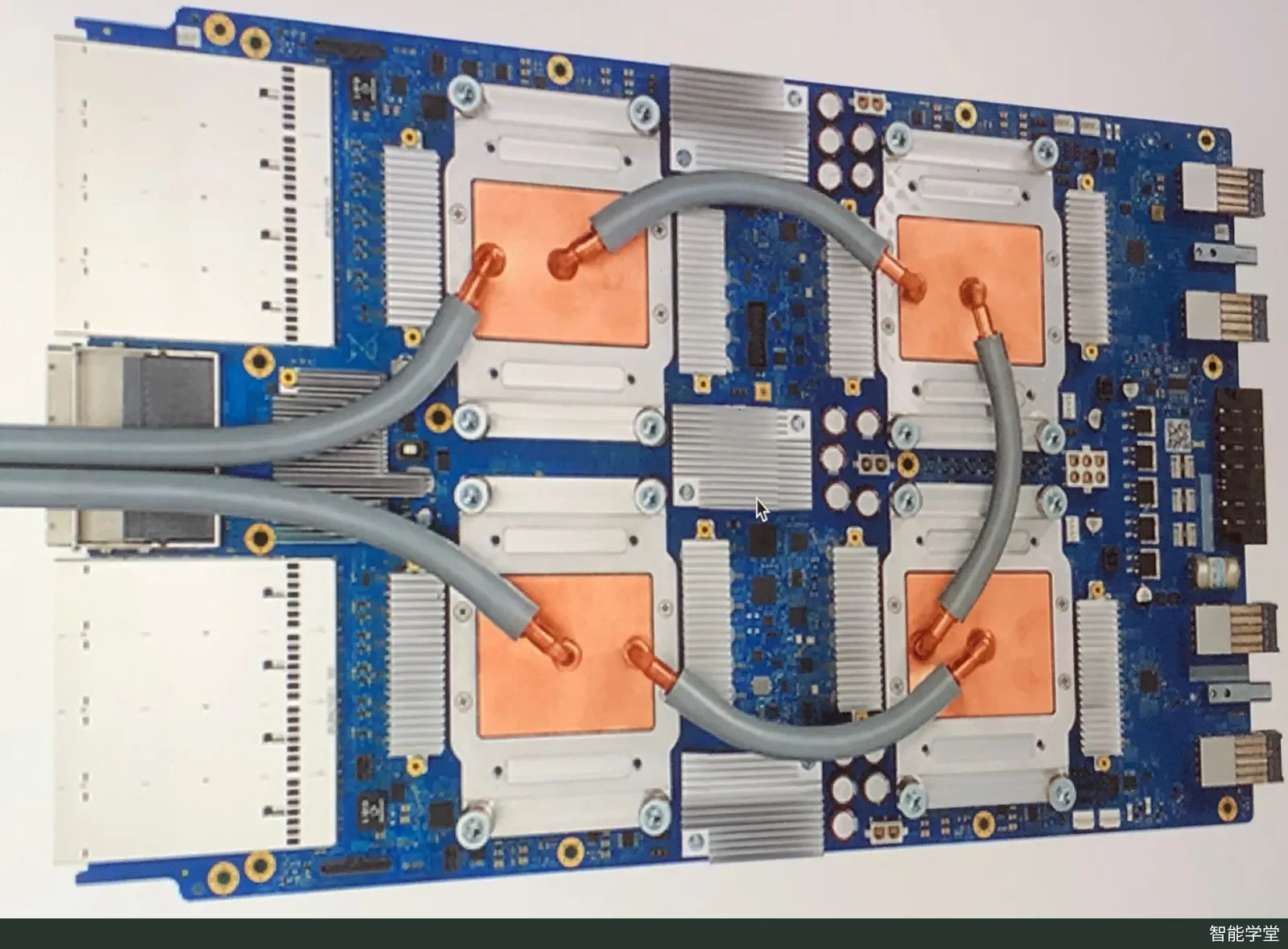
A Google TPU 3.0 device. Kaggle's documentation once listed the TPU v3-8 as its free TPU model; the current model has yet to be verified. Image: Zinskauf, via Wikimedia Commons, licensed under CC BY-SA 4.0.
Kaggle gives registered users free cloud compute in Notebooks. According to the official documentation, the GPU quota is 30 hours per week (sometimes higher, depending on demand and resources), and TPUs are capped at 20 hours per week. A single session can run for up to 12 hours on CPU or GPU and up to 9 hours on TPU, with 20 GB of auto-saved disk space. This article uses Kaggle's official documentation to summarize the quotas, hardware, verification requirements, and terms of use. The information was verified on October 22, 2026.
Weekly Quotas and Available Hardware
Kaggle's GPU usage page says the free GPU quota is calculated and reset weekly. The quota is 30 hours, "sometimes higher, depending on demand and resources." The TPU page lists a maximum of 20 hours per week and up to 9 hours per session. Neither page says what day of the week or what time the quota resets, so the exact reset time has yet to be verified. You can check your remaining quota in the editor's settings menu, at the top of the kaggle.com/notebooks page, on your profile page, and in the session management window. The documentation says both GPUs and TPUs are free but does not list eligible regions, so any regional restrictions have yet to be verified. At busy times, you may have to wait in a queue for either one.
| Accelerator option | Accelerator | CPU cores | RAM |
|---|---|---|---|
| None (CPU only) | — | 4 | 30 GB |
| GPU P100 | 1 NVIDIA Tesla P100 | 4 | 29 GB |
| GPU T4 x2 | 2 NVIDIA Tesla T4 | 4 | 29 GB |
| TPU (1VM) | TPU, model yet to be verified | 96 | 330 GB |
The values in the table come from the "Technical Specifications" section of the Kaggle Notebooks documentation, which notes that they reflect the configuration "at the time of writing."
The official documentation does not list GPU memory size, so this has yet to be verified. The documentation is inconsistent about the TPU model. The "Adding a free TPU" section of the Notebooks documentation names the TPU v3-8, and the TPU page also uses the v3-8 as its example. However, the same TPU page notes that its content was written for "older TPUs that Kaggle no longer supports." The TPU models shown in the editor's Accelerator menu are the ones currently available; the official wording has yet to be verified.
Kaggle also runs a limited-time promotion labeled as experimental. If you link your Kaggle account to an active Colab Pro or Pro+ subscription, you get an extra 15 or 30 hours of GPU time per week, respectively. This time does not use Colab compute units and runs on Kaggle's existing hardware. The promotion terms say that Kaggle may change the quota or end the promotion at any time, and the end date may not be announced publicly or in advance, so the deadline has yet to be verified. This article did not verify the cost of a Colab Pro subscription itself.
Session Length, Disk, and Memory
The technical specifications section of the Notebooks documentation lists the resource limits for each session: CPU and GPU sessions can run for up to 12 hours, and TPU sessions for up to 9 hours. When you save a version with "Save & Run All," the whole notebook must also run from start to finish within 12 hours (9 hours for TPU). If your training takes longer than this, you need to split it into several segments yourself.
Disk space comes in two parts. /kaggle/working provides 20 GB of auto-saved space. A notebook can save up to 20 GB of output, which you can later mount again as input in other notebooks. Outside that directory there is also temporary space, which is not kept after the session ends; the documentation does not state its capacity, so this has yet to be verified. For uploaded datasets, each dataset is capped at 200 GB, and your private datasets are also capped at 200 GB in total.
The documentation gives two different idle timeouts. The technical specifications section says an interactive session ends if you neither edit nor run any code for 20 minutes. The GPU usage tips page, however, says interactive sessions stay active until they reach a 60-minute idle limit. Which figure is current has yet to be verified. To be safe, stop the session manually in the Active Events window at the bottom left of the page before you step away. The GPU usage tips page also notes that doing this can save up to 60 minutes of compute time.
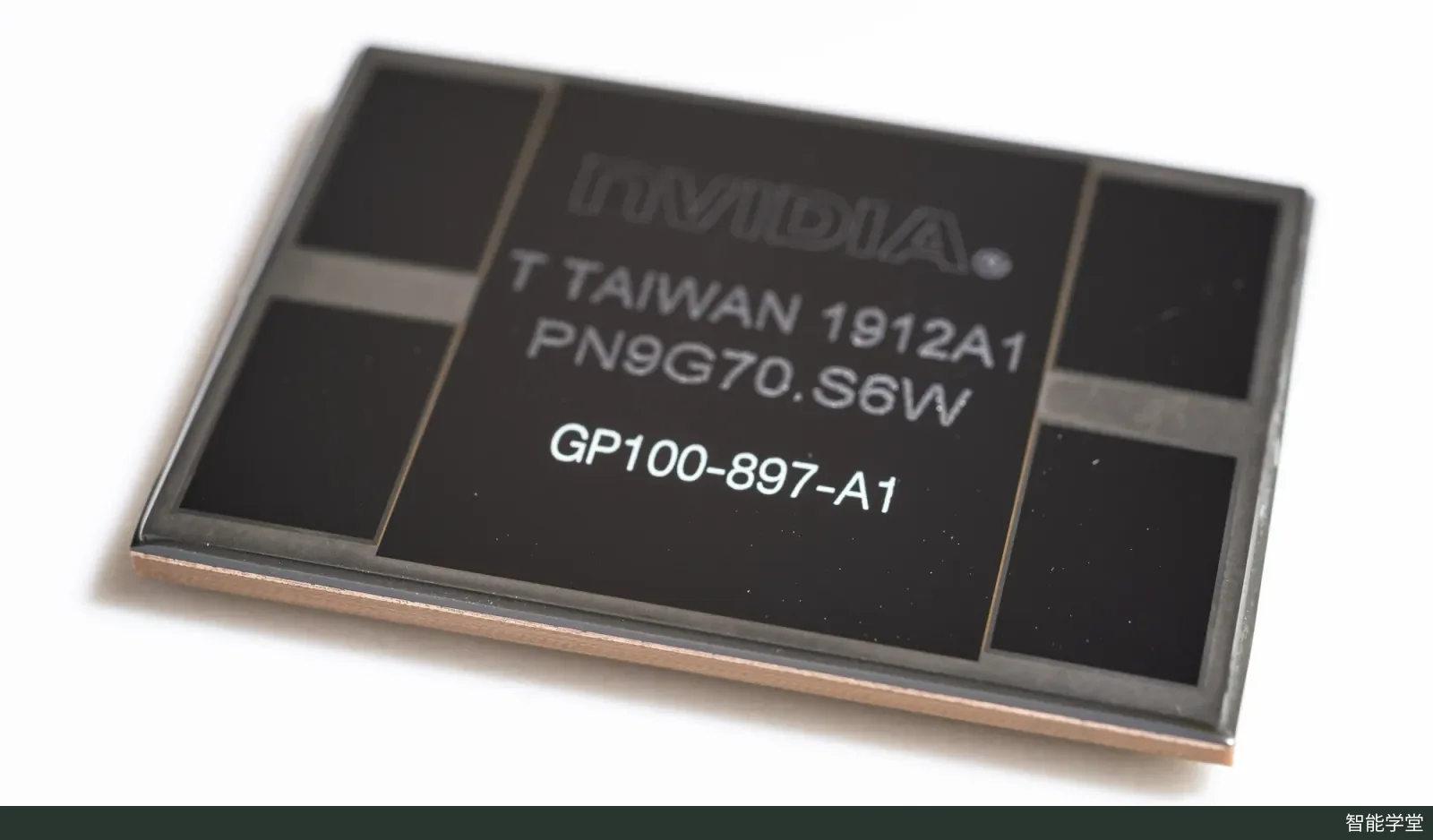
The NVIDIA Tesla P100 (GP100). The P100 is one of the free GPU options listed in Kaggle's technical specifications. Image: FritzchensFritz, via Wikimedia Commons, licensed under CC0 1.0.
Verification Requirements, Internet Access, and Terms of Use
We have not found any official Kaggle rule that requires phone verification specifically for GPUs or TPUs. None of the three documents (Notebooks, GPU, and TPU) says that "you must verify your phone number first." The third-party fast.ai course resources page says that you need a phone-verified account to use GPUs on Kaggle, and that you can do this under "Phone Verification" on the account page. Kaggle's own Benchmarks documentation requires phone verification before an account can use resources such as the LLM API quota. It also says that accounts registered after December 15, 2025 need additional identity verification to run task notebooks, but this applies only to Benchmarks. For the verification requirements for GPUs, TPUs, and internet access, follow the prompts that actually appear on your account settings page; the official rules have yet to be verified. In addition, the Terms of Use allow each person to have only one account, so do not register multiple accounts to get more quota.
Internet access is controlled by the Internet toggle in the editor's Session options. The documentation says internet access is on by default for new notebooks, and when it is on, you can install extra packages with !pip install. Some code competitions require submitted notebooks to have internet access turned off. In that case, you can use the Dependency Manager to package dependencies in advance and install them offline. The official documentation does not say whether the internet toggle also requires phone verification, so this has yet to be verified. Notebooks can also connect to Google Cloud services such as BigQuery and Google Cloud Storage. These services bill the linked Google Cloud account and are not covered by the free quota.
The Terms of Use (effective June 22, 2025) say that the service may be used only for personal, internal, non-commercial purposes, and they explicitly prohibit cryptocurrency mining. The Acceptable Use Policy, effective on the same date, prohibits abusing resources, specifically including cryptocurrency mining, DDoS attacks, server farming, and "activities unrelated to machine learning or data science." Using free compute to host services unrelated to learning over the long term may violate these rules, and violating the terms can lead to account termination.
Datasets and models each have their own licenses. The uploader chooses the license for a public dataset. Common licenses include Creative Commons, GPL, and ODC, and any license not in the drop-down list is stated in the dataset description. The Terms of Use require you to follow the copyright notices on any content you access, and they prohibit copying, republishing, or otherwise using that content without the rights holder's consent. To use competition data, you must first accept that competition's rules, and the competition rules also determine whether you can use external data. Some models (the documentation uses Gemma as an example) require you to agree to a custom license first. Gated models may also ask you to fill in some information, and you can use them only after the access status shows "Accepted."
Tips for Learning AI and Running Experiments
The first four tips below come from Kaggle's official GPU usage tips page. The others are practices based on the session-length and storage limits above, plus official recommendations from the TPU page.
- Turn on the GPU only when you actually need it. The official tips note that libraries such as pandas and scikit-learn do not run faster just because a GPU is available. You can first get your data processing and code working in a CPU session, then switch to a GPU for training.
- Don't use "Save & Run All" just to save your work. It reruns the whole notebook from start to finish. If you only want to keep your progress, use Quick Save or simply download the .ipynb file.
- Clean up sessions promptly. If you submit the same notebook again before the previous submission has finished, you will get multiple batch sessions running in parallel; you can cancel the run that uses the old code. Stop the interactive session before you close the page.
- Push versions with the Kaggle API. This lets you submit a new notebook version to run without opening an interactive session at all.
- Plan training around the session limit. Treat 12 hours (9 hours for TPU) as your limit and regularly write checkpoints to /kaggle/working. In the next session, mount the previous notebook's output as input and resume training from the checkpoint.
- For TPU code, follow the newer documentation. The examples on the TPU page mainly use TensorFlow/Keras. The page recommends organizing training data into tens to hundreds of TFRecord files, each tens to hundreds of MB in size. However, the page notes that it was written for older TPUs, so when you migrate code, follow Google Cloud's official TPU documentation.
- Train on TPU, submit on GPU. Some code competitions do not accept submissions run on TPUs. The official workaround is to train and save the model on a TPU in one notebook and save the output as a dataset. You then load the model in a GPU notebook to run inference and submit.
- Start from public notebooks. You can fork public notebooks directly from competition and dataset pages, reproduce their results first, and then modify them. Any models attached to the original notebook are carried over into your copy.
References
-
Kaggle. Notebooks | How to Use Kaggle. No update date shown on the page; accessed 2026-10-22.
-
Kaggle. Efficient GPU Usage Tips. No update date shown on the page; accessed 2026-10-22.
-
Kaggle. Tensor Processing Units (TPUs). No update date shown on the page; accessed 2026-10-22.
-
Kaggle. Datasets | How to Use Kaggle. Accessed 2026-10-22.
-
Kaggle. Models | How to Use Kaggle. Accessed 2026-10-22.
-
Kaggle. Benchmarks | How to Use Kaggle. Accessed 2026-10-22.
-
Kaggle. Terms of Use. Effective 2025-06-22; accessed 2026-10-22.
-
Kaggle. Acceptable Use Policy. Effective 2025-06-22; accessed 2026-10-22.
-
fast.ai. Practical Deep Learning for Coders - Kaggle. Third-party course page; accessed 2026-10-22.
-
Smart Academy · Your own academy for the age of intelligence
-
Compiled and published by Scholay, the all-in-one academic platform. If any content infringes your rights, please let us know and it will be taken down.
-
Also published on EnterScholar, a community for scholars in the age of intelligence